

As an Oracle EBS administrator, you may often find yourself in situations where you do not have direct SQL*Plus or SSH access to the database tier — especially in restricted production environments, cloud setups, or when working as an Apps DBA focused on the application tier.
The good news is that Oracle Applications Manager (OAM) in EBS 12.2 provides powerful built-in tools to perform essential database health checks directly from the application tier. This allows you to quickly verify instance status, tablespace usage, system alerts, and critical services like the Workflow Notification Mailer.
In this step-by-step guide, we’ll cover the most important basic health checks.
1. Log in to Oracle Applications Manager (OAM)
- Log in tou your EBS 12.2 instance as a user with System Administrator or Applications Manager responsibility ( e.g., SYSADMIN )
- Navigate to System Administrator > Oracle Applications Manager > Applications Dashboard.
This is your central hub for monitoring the entire EBS environment.
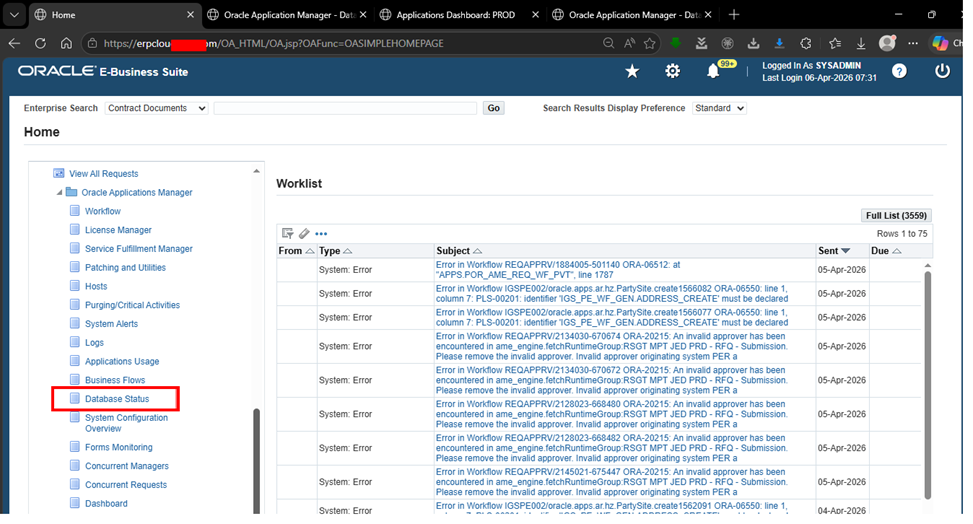
From the left navigation menu, you can directly access:
Drom the left navigation menu, you can directly access:
- Database Status
- Workflow
- System Alerts
- Concurrent Managers, etc.
2. Check Database Instance Status
Navigate to Database Status under the left menu ( or via Applications Dashboard > Site Map > Database Status ).
Key things to verify:
- Instance Status: Should show Open with a green checkmark for PRIMARY_INSTANCE.
- Startup Time: Note when the instance was last started.
- Sessions: Active sessions ( high numbers may indicate load ).
- Host and versions: Confirm you are on the expected database version ( e.g, 19.0.0.0 ).
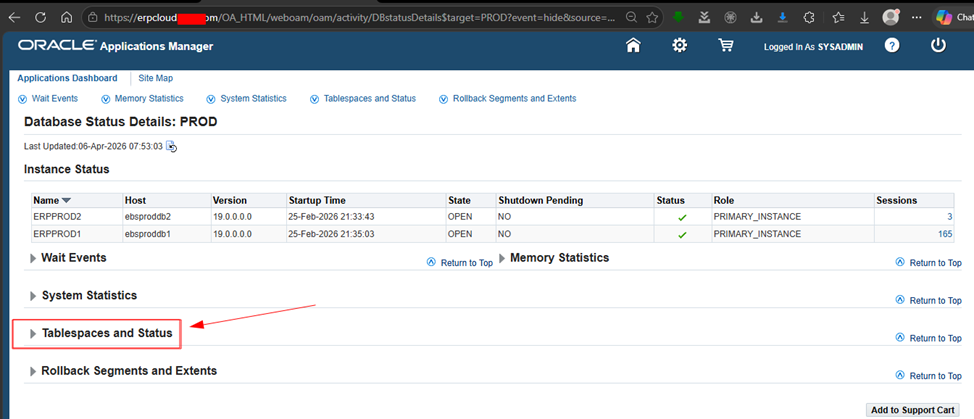
In the example above:
- Two RAC instances ( ERPPROD1 and ERPPROD2 ) are OPEN.
- No shutdown is pending.
- One instance has 165 sessions.
3. Check Tablespaces and Free Space (Critical for Database Health)
This is one of the most important checks when you can’t query DBA_TABLESPACES directly.
This is one of the most important checks when you can’t query DBA_TABLESPACES directly.
From the Database Status Details page, expand Tablaspaces and status.
What to look for:
- %Free column: Ideally > 15-20% free space for most tablespaces.
- Watchout for low free space in critical tablespaces like SYSTEM, SYSAUX, APPS_TS_TX_DATA, undo tablespaces, and temp tablespaces.
- USED MB vs FREE MB.
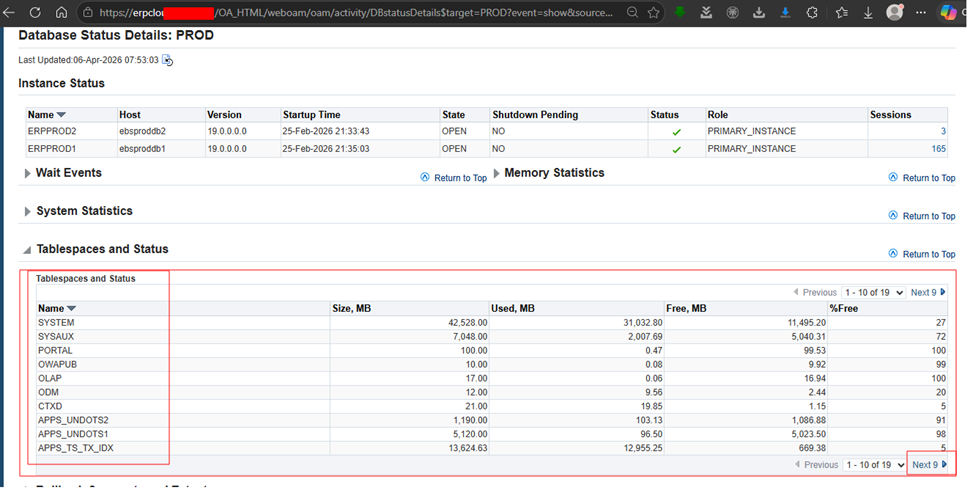
In the provided view:
- Most tablespaces show healthy free space ( e.g, APPS_TS_TX_DATA at 91% free ).
- Pay special attention to any tablespace below 10% free.
Tip: If any tablespace is critically low, raise a ticket with the DB team immediately or request tablespace resize/ add datafile.
4. Check Overall Applications System Status
Go back to the Applications Dashboard (Overview tab).
Go back to the Applications Dashboard ( Overview tab ).
here you can see:
- Host status for all application nodes.
- Database status ( green checks = healthy )
- Concurrent Processing status
- Recent configuration changes
- System Alerts and User Initiated Alerts
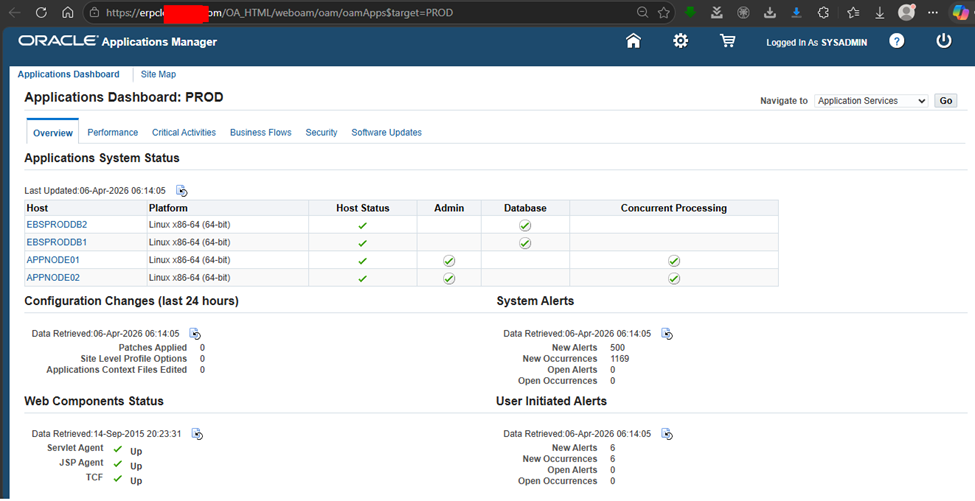
In a healthy system, you should see green checkmarks across the board.
5. Check Workflow Notification Mailer Status (Very Important!)
Many “system errors” in the worklist are related to Workflow. Notifications not reaching users is a common production issue.
Navigate to:
Workflow Administrator > Oracle Applications Manager > Workflow Manager > Service Components
or directly from the component search.
Verify:
- Workflow Notification Mailer status = running ( green check ).
- Type: Workflow Mailer.
- Container: Oracle Applications GSM.
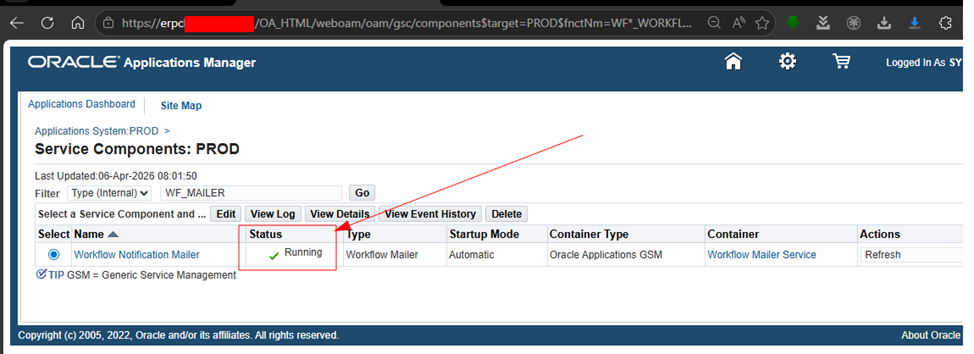
If the mailer is Down or Error, notifications will queue up and users won’t receive approval emails.
6. Additional Quick Checks from OAM
- System Alerts: Review any new critical alerts.
- Concurrent Request: Check for long-running or errored requests.
- Patching and critical activities: ensure no pending patches or maintenance are blocking normal operaitions.
- Worklist: Clear or investigate recurring “System Error” notifications ( often related to invalid approvers or workflow issues ).
Conclusion
You don’t always need direct database access to perform basic but essential health checks on your Oracle E-Business Suite 12.2 environment. Oracle Applications Manager gives you excellent visibility into database instance status, tablespace usage, overall system health, and Workflow services directly from the application tier.


 Visit Today : 49
 Visit Yesterday : 45
 This Month : 340
 This Year : 2440
 Total Visit : 9836
 Hits Today : 60
 Total Hits : 12924
 Who's Online : 2